
Square Online Permalink Not Working? Here’s Why and How to Fix It
You edited a page URL, clicked save, and the new link still returns a 404. Or the custom product slug you spent ten minutes writing sits buried behind /product/. A Square Online permalink not working almost always traces back to one of four causes, and none of them need a developer. Let’s discuss all of these four causes in detail and how you can fix them.
Common Reasons for a Square Online Permalink Not Working
Here are the usual reasons that can cause your Square permalink to malfunction:
You Saved but Never Published
Square Online treats the site editor as a draft. Slug edits, redirects, and SEO settings stay inactive until you hit Publish. Until then, the live site keeps serving the old address and the new one 404s.
Square Controls Part of the URL
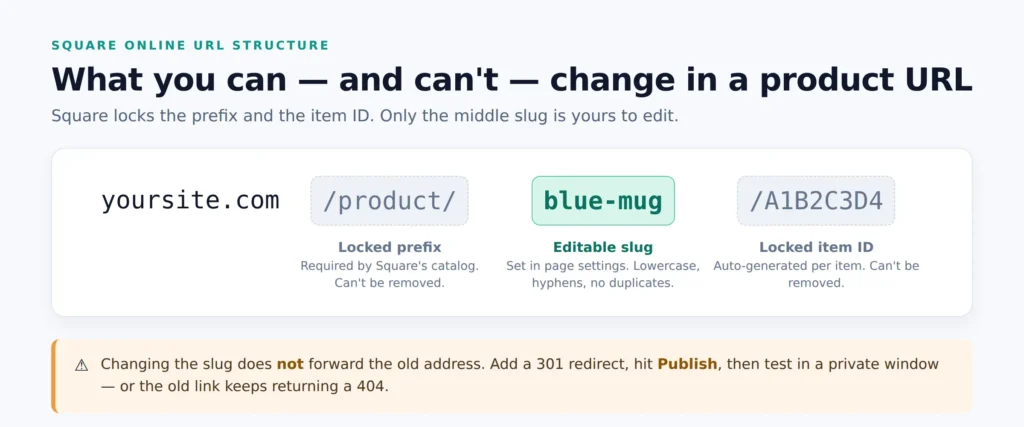
Item pages follow a fixed pattern: /product/your-slug/item-ID. The /product/ prefix and the item ID are system requirements tied to Square’s catalog, so only the middle slug is editable. If you expected yoursite.com/blue-mug to resolve, it won’t. That’s the platform, not a bug.
The Old URL Has No Redirect
Changing a slug doesn’t forward the old address. Anyone holding the previous link, Google included, hits a 404 until you add a redirect.
Duplicate or Invalid Slugs
Two pages can’t share a slug. Spaces, capitals, and special characters get stripped or rewritten, so the live URL may not match what you typed. Deleted pages can also hold onto their slug, which blocks you from reusing it on a new page.
How to Fix It Step by Step
Now, let’s explore the practical steps you can use to fix your permalink issues:
1. Re-check the Slug in Page Settings
Open Website > Edit site, select the page, and click the gear icon for page settings. Rewrite the slug in lowercase with hyphens between words, then save.
2. Add a 301 Redirect
For one page, turn on redirects in the General tab of page settings and enter the old URL. For a batch, go to Channels > Square Online > Website > SEO and use Add redirects, pairing each old URL with its new page. Two limits matter: one redirect per page, and the old URL has to sit on the same domain.
3. Publish, then Test in a Clean Browser
Hit Publish and open the link in a private window. Browser cache is behind a surprising number of “still broken” reports.
Protect Your Rankings After the Change
After you make the changes, it’s important to make sure your rankings get back on track. Here’s how you can achieve it:
Update Internal Links and Your Sitemap
Redirects catch outside traffic, but internal links pointing at dead slugs’ waste crawl budget and frustrate visitors. Sweep your navigation, buttons, and blog body copy. Then resubmit your sitemap in Google Search Console so the new URLs get crawled instead of the retired ones. If those broken URLs were driving store visits, our SEO team can help you recover the map pack and “near me” traffic they were feeding.
Know What Redirects Won’t Cover
Images and PDFs often don’t follow redirects, so anything you shared by email or in print needs a manual check. Square does apply canonical tags automatically, which keeps the fixed product URL structure from creating duplicate content problems.
Use Short Links for Offline Promotion
Since you can’t strip /product/ from an item URL, a URL shortener or a dedicated landing page is the practical answer for QR codes, flyers, and social bios.
Final Thoughts
A Square Online permalink not working usually comes down to an unpublished change or a missing redirect. Fix the slug, add the 301, publish, then test in a fresh browser session. That sequence clears the large majority of cases. If a URL still fails, check whether the page itself is hidden or unpublished.